
How to Convert SVG to PNG – Everything You Need to Know
Introduction
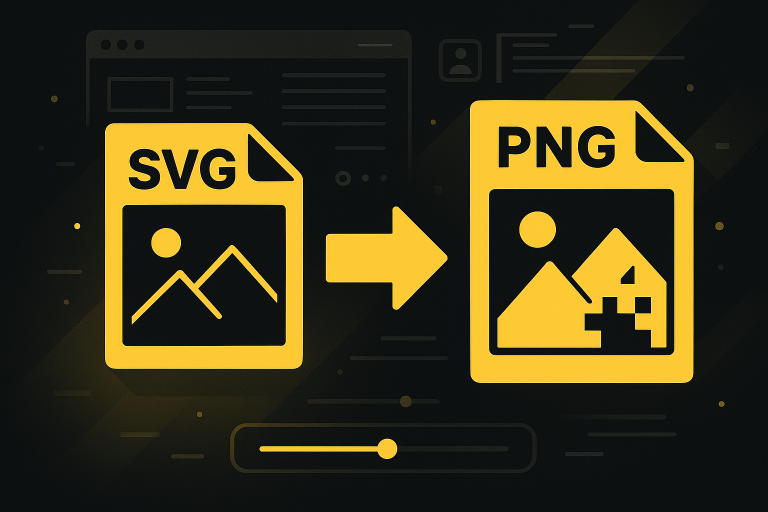
In today's digital landscape, image conversion plays a vital role across web development, graphic design, and app creation. Different projects demand different image formats — and sometimes, converting between them is essential. One common task is turning SVG files into PNG images.
But why is this conversion important? And how can you do it quickly, securely, and without sacrificing quality? In this guide, you'll learn everything you need to know and discover how the BeeForge SVG to PNG Converter can simplify your workflow.
What is an SVG?
Definition and Technical Background
SVG (Scalable Vector Graphics) is an XML-based image format that uses mathematical formulas to describe shapes, lines, and colors. Unlike raster images, SVGs can scale infinitely without losing quality.
Advantages of SVG
- Infinite Scalability: Maintains sharpness at any size.
- Lightweight: Often smaller than high-resolution raster images.
- Editable: Can be modified with code editors or vector design tools.
- Interactive: Supports animations and user interactions.
Disadvantages of SVG
- Compatibility Issues: Some older platforms and software don't fully support SVGs.
- Complexity: Very detailed graphics can make SVG files heavy and complex.
- Performance: Complex SVGs might slow down webpage load times.
What is a PNG?
Definition and Key Features
PNG (Portable Network Graphics) is a raster image format known for lossless compression and excellent support for transparency. It's widely used across the web and digital applications.
Why Choose PNG?
- Lossless Quality: Retains all details without compression artifacts.
- Transparency: Supports full alpha transparency, ideal for overlays and logos.
- Universal Compatibility: Works across all browsers, apps, and devices.
When PNG is the Better Option
- When you need a transparent background image.
- When platform compatibility is critical.
- When high-quality, pixel-perfect graphics are required for digital use.
SVG vs. PNG: Main Differences
| Feature | SVG | PNG |
|---|---|---|
| Type | Vector | Raster |
| Scalability | Infinite | Fixed Resolution |
| File Size | Smaller for simple graphics | Can be larger |
| Transparency | Yes | Yes |
| Browser Support | Most modern browsers | All browsers |
| Best For | Icons, logos, illustrations | Web images, social media, app assets |
When to Use Each Format
- Choose SVG for responsive logos, icons, and scalable graphics.
- Choose PNG when you need pixel-perfect images across platforms.
Why You Might Need to Convert SVG to PNG
There are several real-world situations where SVG-to-PNG conversion becomes necessary:
- Web Development: Some CMS platforms or frameworks require raster images.
- Mobile App Development: Mobile stores and frameworks prefer PNGs for assets.
- Social Media Content: Platforms like Facebook and Instagram favor PNG or JPG formats.
- Email Marketing: Many email clients have limited SVG support.
- Print Materials: Printing software typically needs raster images for consistency.
By converting your SVGs to PNGs, you ensure broader compatibility without sacrificing visual quality.
Common Problems When Converting SVG to PNG
Although converting SVGs is generally straightforward, challenges can occur:
- Maintaining Transparency: Some tools flatten or lose transparent backgrounds.
- Resolution Issues: Poor scaling can result in blurry output.
- Color Differences: Color profiles can shift slightly during conversion.
- Large File Sizes: Unoptimized PNGs can increase loading times.
Introducing the BeeForge SVG to PNG Converter
The BeeForge SVG to PNG Converter was built to address these needs with speed, security, and ease of use.
Browser-Based Speed and Security
- No File Uploads: All processing happens in your browser — your files stay private.
- Instant Conversion: No waiting times or server queues.
Advanced Features
- Custom Scale Factor: Resize your output PNG easily with the built-in scaling option.
- Live Preview: See the final result before downloading.
- One-Click Download: Get your high-quality PNG instantly.
Key Benefits
- Free to use
- No registration or signup required
- Compatible with all modern browsers
- Ideal for professional and personal projects
How to Use the BeeForge SVG to PNG Converter
Here's how you can easily convert your files:
- Open the BeeForge SVG to PNG Converter.
- Drag and Drop your SVG file or click to upload.
- Check the Live Preview to see your PNG.
- Adjust the Scale Factor if needed, then click "Apply."
- Download your converted PNG with a single click.
Tips for Optimizing Your PNG Files
After conversion, optimizing your PNG can further enhance your results. Here are some tips:
- Compress the File: Use tools like TinyPNG to reduce file size without quality loss.
- Resize for Purpose: Match the dimensions to your website or app requirements.
- Limit Transparency: Remove transparency if not needed to save space.
- Use Correct File Formats: Sometimes converting to PNG-8 instead of PNG-24 helps save space.
Explore More Conversion Tools
If you found the SVG to PNG Converter helpful, you might also enjoy exploring other conversion tools on BeeForge. From JSON formatters to Base64 encoders, our collection of free, browser-based utilities is designed to make your workflow faster, simpler, and more secure.
Final Thoughts
Converting SVG files to PNG doesn't have to be complicated. With the BeeForge SVG to PNG Converter, you can create pixel-perfect PNGs quickly, securely, and effortlessly.
Whether you're preparing images for web development, mobile apps, or social media, this tool ensures consistent, professional results — every time.
Try it today and simplify your creative workflow! 🚀